
University
Stationery
Stationery Update
Good news: You can order UConn stationery again!
Slightly less good news: There are multiple steps, but they’re temporary.
This is for UConn Storrs and regional campuses.
University Communications and the Document Production Center have partnered on a solution for UConn stationery. Eventually, the DPC on the Storrs campus will handle all stationery requests. In the meantime, University Communications will be your DPC liaison.
The process for now:
- Request stationery from University Communications.
- Receive templates to personalize.
- Share the personalized file for approval. Once approved,
- Order the stationery through DPC.
Thank you for your patience and cooperation.
If your stationery print order is to exceed 8,000 copies please notify us in the form with your request.
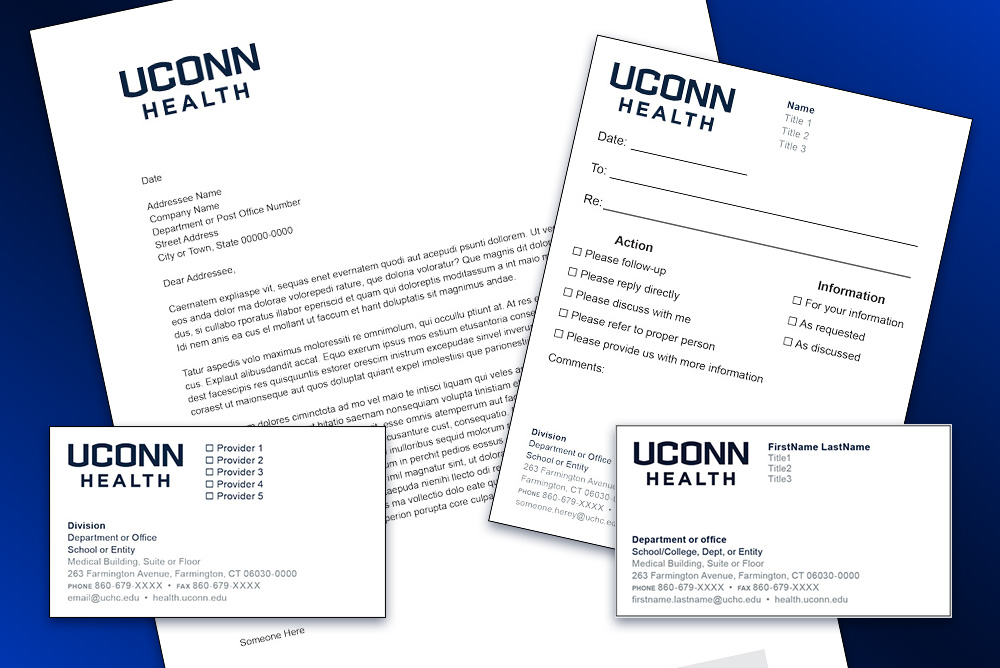
UConn Health stationery remains unchanged and is ordered through P&S Services in HuskyBuy.
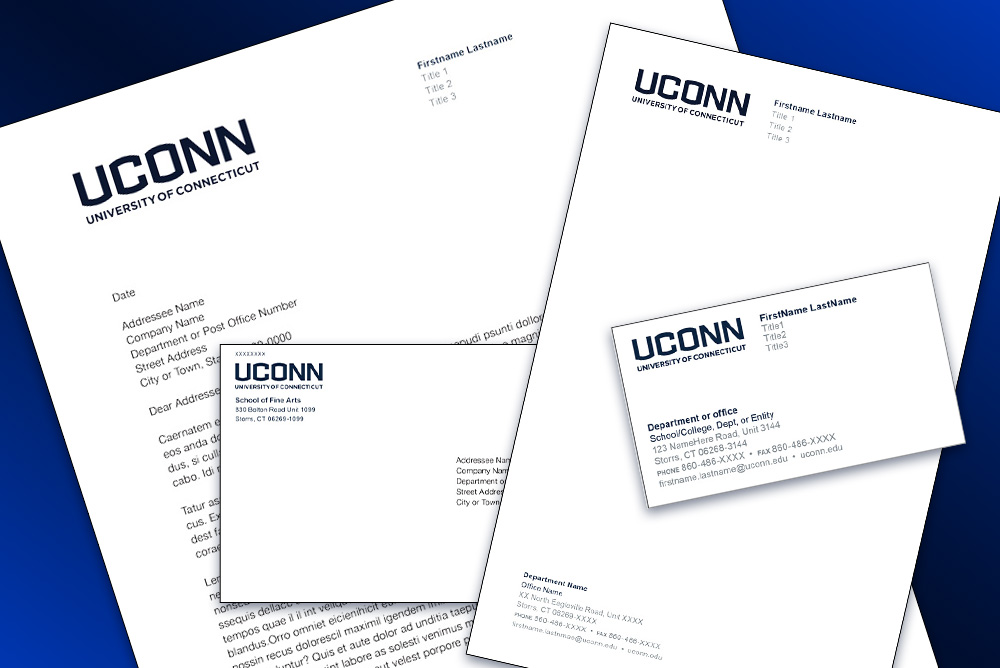
As one of the most common and visible forms of branding, stationery says who we are internally and externally. Therefore, all stationery items must be of consistent design and print quality.
A variety of official templates, both print and electronic, are available for UConn academics from Document Production Center and UConn Health in HuskyBuy, which provide a flexible stationery system for the University and UConn Health communities. No other means of producing stationery is allowed.
Guidelines for Stationery Templates
- Adhere to the correct fields.
- Avoid including “https://” or “www.” in your web address.
- Avoid including “www” in your web address, unless necessary for the site to work.
- Evenly distribute words between lines (i.e., don’t leave a word alone on a line).
- Be sure to use official department/office names and titles.
- Be consistent. For instance, if you are using ampersands or hyphens, use them throughout.
- Put pronouns in the first Title field and keep in lowercase, no parenthesis (e.g., she/her/hers, they/them/theirs).
- Do not change fonts or font sizes.
- Do not change colors.
- Phone numbers should use hyphens, not periods
- If there are sections in the template that you do not need, please delete those areas.
- If you need a dual locations letterhead template or would like a review of your template, please email christine.vasington@uconn.edu.
Guidelines for Stationery Templates Specific to UConn Health
- Adhere to the correct fields.
- Avoid abbreviations. Spell everything out.
- Avoid hyphens and ampersands.
- Avoid including “https://” and “www” in your web address.
- Keep the default health.uconn.edu web address. Use an alternative if appropriate; not to exceed one line on the front of the card.
- Be sure to use official department/office names and titles. Outside designations are not allowed.
- Avoid periods between degrees, MD, PhD, APRN.
- Don’t use UConn Health in the address.
- Use UConn School of Medicine and UConn School of Dental Medicine.
- Mail code format: MC XXXX. Don’t use MC-XXXX or MCXXXX.
- Room number format: AG050. Don’t use AG-050 or AG 050.
- Use numbers for floors, e.g., 1st Floor, 2nd Floor.
- Keep the email address in lowercase.
- Put pronouns in the first title field and keep in lowercase, no parenthesis (e.g., she/her/hers, they/them/theirs).
Student Business Cards
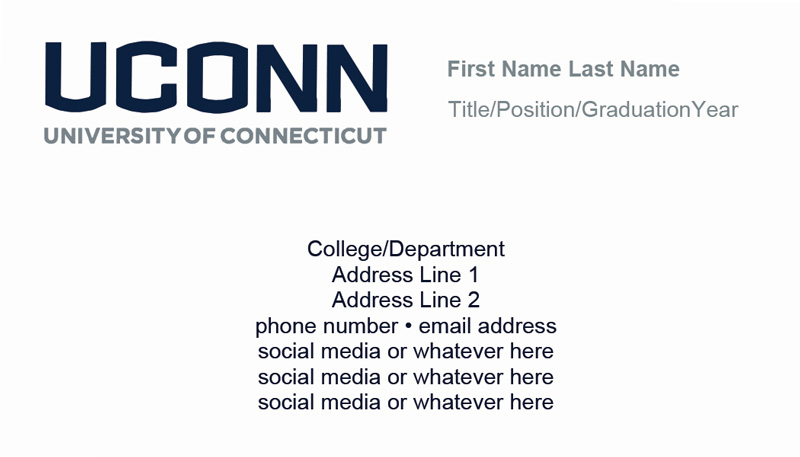
Student business cards are available through the Document Production Center. The redesigned student business cards are more in line with university standards on business cards for faculty and staff, thus providing a higher quality outcome for those students that desire university business cards.
Name Badges
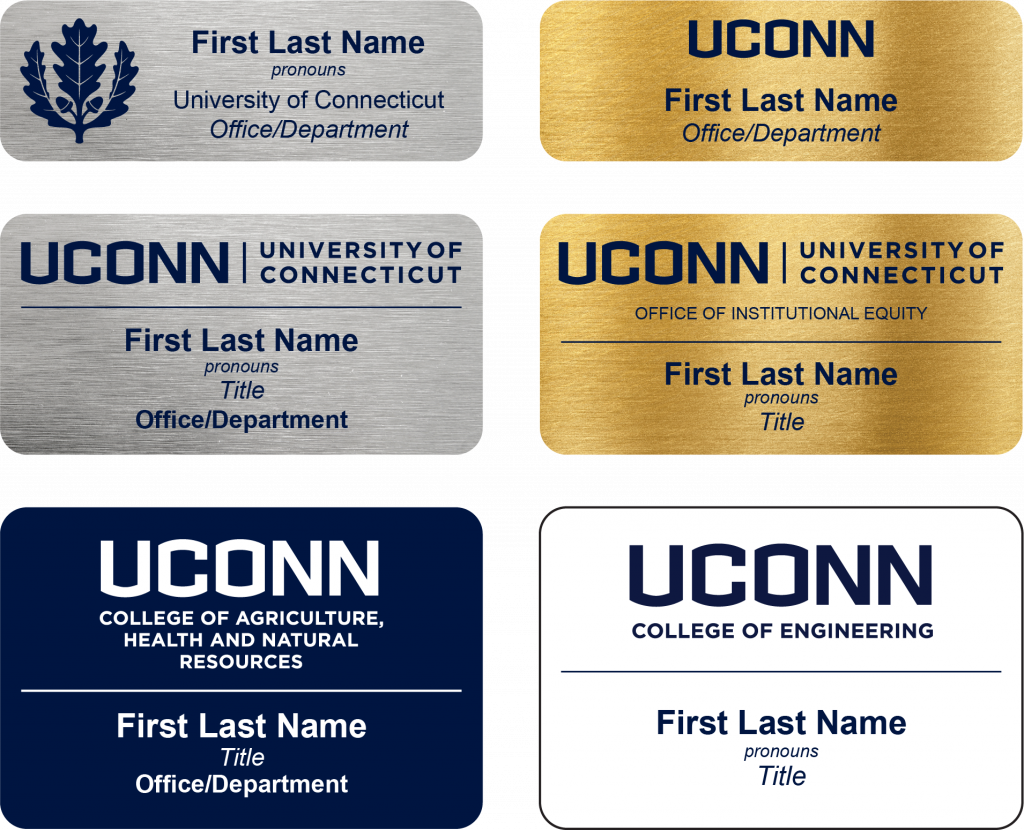
To ensure a consistent and professionally branded look, the University has developed name badge templates and standards for employee name badges.
- Depending on the size of the name tag, different brand elements may be used including different variations of the primary wordmark, as well as second and third tier wordmarks, and the Oak Leaf.
- Name badges should be ordered in one of the following finishes:
- Brushed metal gold with navy or black imprint
- Brushed metal silver with navy or black imprint
- Plastic navy blue with white imprint
- Plastic white with navy imprint
Please reach out to anna.milot@uconn.edu if you would like help with designing a layout for your name badges. Use one of the licensed and approved vendors to order name badges.
Layout Examples
The full selection of official stationery templates, including business cards, printed and electronic letterhead, envelopes, etc., is available through the following:
- The Document Production Center for the Storrs campus, regional campuses, and Law School, and also provides business card printing for current students.
- HuskyBuy for the Storrs campus, regional campuses, and Law School.
- HuskyBuy for UConn Health.