
Guidelines
A wordmark is a designed, text-only representation of the name of an organization, in our case UConn, which includes the exact typeface, color, letter spacing, and arrangement of the word, without additional symbols or graphics. Because it’s text, a wordmark can easily get lost among other type in a layout. Our guidelines guard against confusion.
Protected Area
The protected area around the wordmark is imperative and ensures that no other type, graphic elements, or slogan interfere with the clarity and integrity of our logo.
X should always equal the height of the “U” in “UCONN.” Type should never be so close to the wordmark that a layout is likely to be confused with a custom wordmark.

Minimum Size
To ensure legibility, the wordmark must not appear smaller than the following dimensions:
- Print: 1 inch wide
- Digital: 75 pixels wide
- Limited Imprint Area: .5 inch wide
We prefer even larger sizing whenever possible.
Colors
The UConn primary color palette includes navy blue, white, and grey, as shown below.
Our current University brand campaign adds a royal blue to our palette. This color is not for wordmarks and is meant to be an accent, not a primary color in branded collateral (with the exception of campaign art).
The one-color option for UConn wordmarks utilizes either navy blue or black. White wordmarks are available for use on a navy blue or black background. The one-color option for UConn Health utilizes navy blue or black, or white when used on a dark background.
The two-color option includes ‘UCONN’ in navy blue and ‘University of Connecticut’ in grey.
Navy Blue
PANTONE: 289
CMYK: 100 / 76 / 12 / 70
RGB: 0 / 14 / 47
WEB: #000E2F
White
OPAQUE WHITE
CMYK: 0 / 0 / 0 / 0
RGB: 255 / 255 / 255
WEB: #FFFFFF
Grey
PANTONE: 430
CMYK: 33 / 18 / 13 / 40
RGB: 124 / 135 / 142
WEB: #7C878E
Royal Blue (accent only)
PANTONE: 2728
CMYK: 100 / 76 / 0 / 0
RGB: 1 / 62 / 205
WEB: #013ECD
Note: PANTONE and all other Pantone trademarks are the property of Pantone LLC.
Make sure your text is easy to read and meets contrast ratio standards
Color combinations for digital text display must meet a contrast ratio of at least 4.5:1 in order to be compliant with the University’s IT Accessibility standards. Use contrast checkers to ensure your digital text meets contrast ratio guidelines. Which UConn colors are safe to use with each other, check out our UConn accessible color combinations.
Fonts
The unique and custom typeface designed for the UConn primary / level one wordmark is used by the University, UConn Athletics, and UConn Health. When used as part of the Brand Identity System, the words ‘UCONN,’ ‘Huskies,’ and ‘University of Connecticut’ appear in University of Connecticut Extended. In these cases, the font is considered a graphic as opposed to type.
University of Connecticut Extended may not be used as a typeface on its own, nor may individual letters be used in artwork or for any other graphic element. Questions regarding the usage of the University of Connecticut Extended typeface may be directed to brand@uconn.edu.
Gotham and Proxima Nova
Gotham and Proxima Nova font family is used on institutional communications, but is not mandated. They are great fonts, with a variety of weights and are great to use for both headings and body text. The Gotham font family (and all the styles within the family) is a paid font that the University does not license and must be purchased by individual departments. Both Gotham and Proxima Nova families are now available as part of the Adobe Creative Cloud and Adobe Fonts.

Gotham Font Family Examples
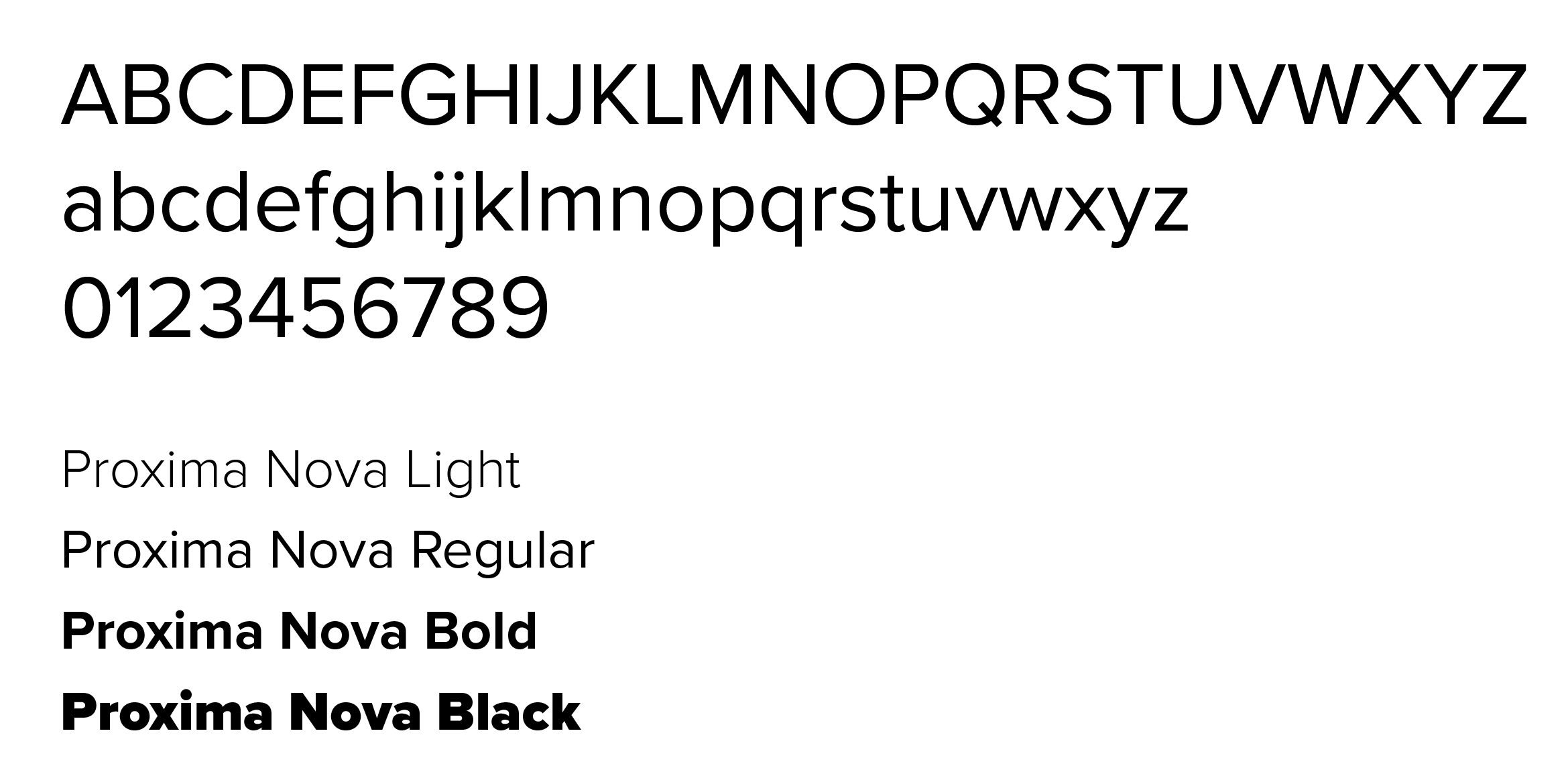
Proxima Nova Font Family Examples
Ideal for:
- Headings
- Body text
- Callouts
- Captions
- Fact/Rankings
Karmina
Karmina font family is used on institutional communications, but is not mandated. This family has font weights of regular and bold and is good to use for both headings and body text. Karmina is available as part of the Adobe Creative Cloud and Adobe Fonts. A comparable web font alternative for Karmina is PT Serif.
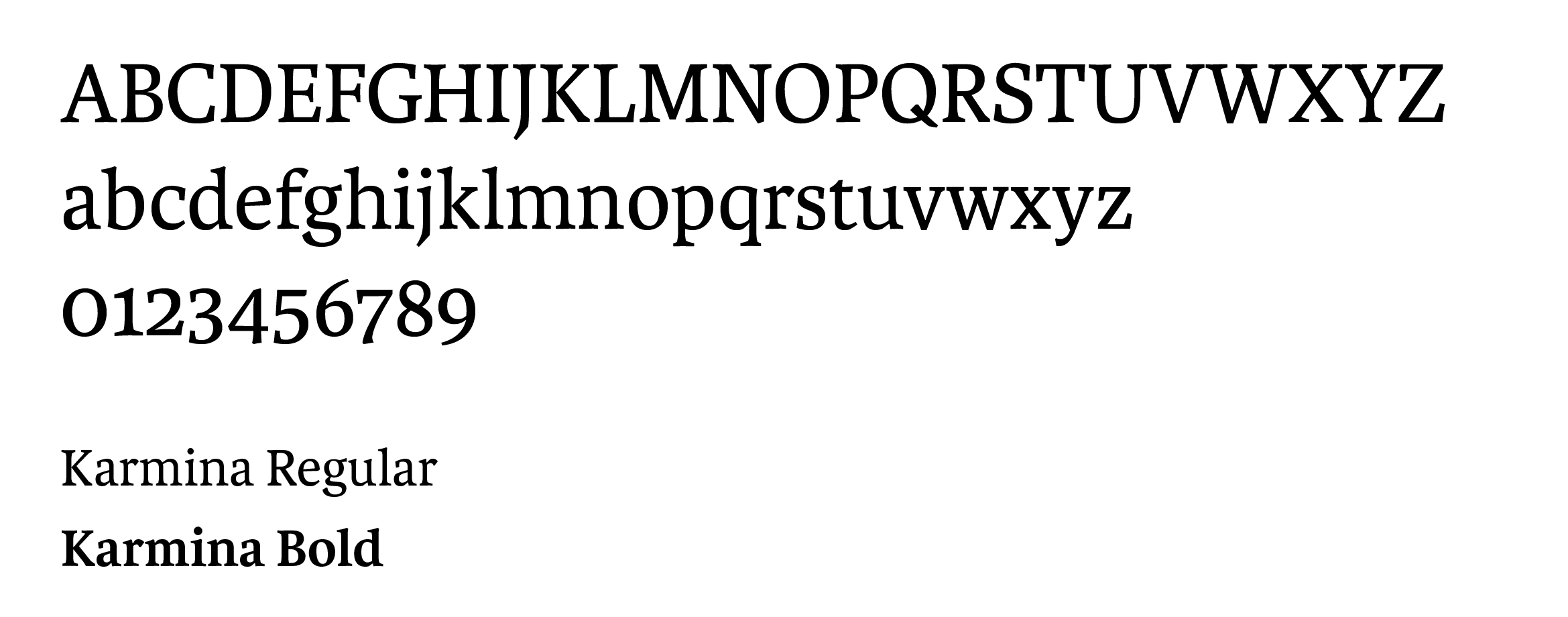
Karmina Font Family Examples
Ideal for:
- Headings
- Body text
- Pull quotes
Incorrect Uses
The examples below apply to all wordmarks and graphical elements throughout the institution.
The UConn Wordmark

DO NOT change the font or add type to the wordmark.

DO NOT stretch or distort the wordmark.

DO NOT change position of any elements of the wordmark.

DO NOT alter the color of any part of the wordmark

DO NOT use the wordmark on a distracting backgrounds or colors outside the UConn color palette unless otherwise approved.

DO NOT frame the wordmark in a restricting box.
The UConn Wordmark Usage on Sponsorship

DO use the UConn wordmark and list out the UConn sponsor departments.
DO use the UConn wordmark in conjunction with outside sponsors.
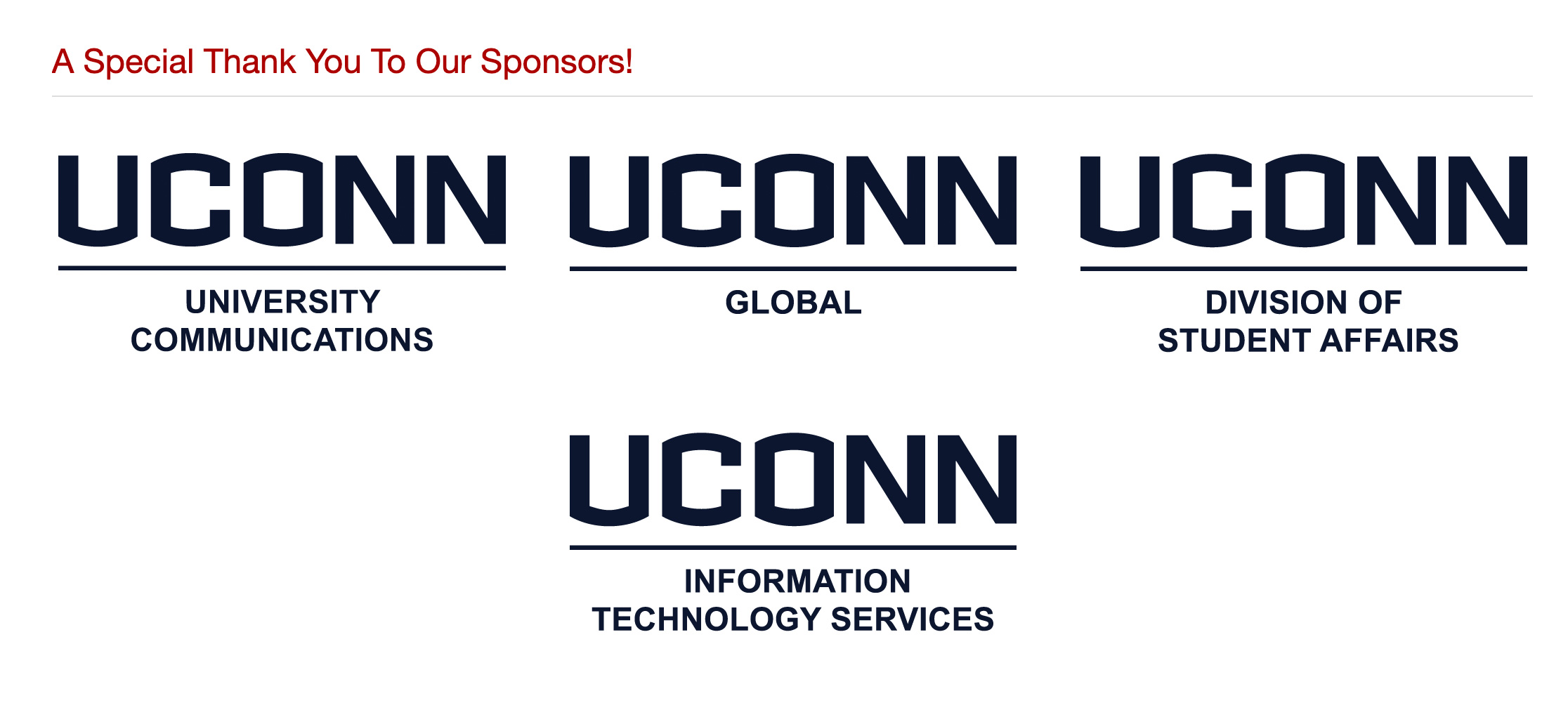
DO NOT use the UConn customize wordmark for sponsorship with multiple departments.