
University Logo
Hierarchy
The UConn wordmark is the core element in UConn’s visual identity system. It is the official logo of the University and is what is most strongly associated with the UConn brand. Level two and level three wordmarks are available so that Schools, Colleges, departments, and University-affiliated groups can distinctly identify themselves, while maintaining a cohesive University brand identity. The oak leaf symbol and Husky Dog logo are also important supplemental expressions of our brand, and we are proud to use these elements to distinguish the University.
If you’re unsure of what you need, please ask. As careful readers have noticed, we in University Communications use wordmark and logo interchangeably and are happy to help you.
Wordmark Architecture
Level One Wordmark
When referring to the overall University, please use the primary / level one wordmark. Available in horizontal and vertical arrangements and in multiple colors, the primary wordmark is often enough to convey the UConn brand.
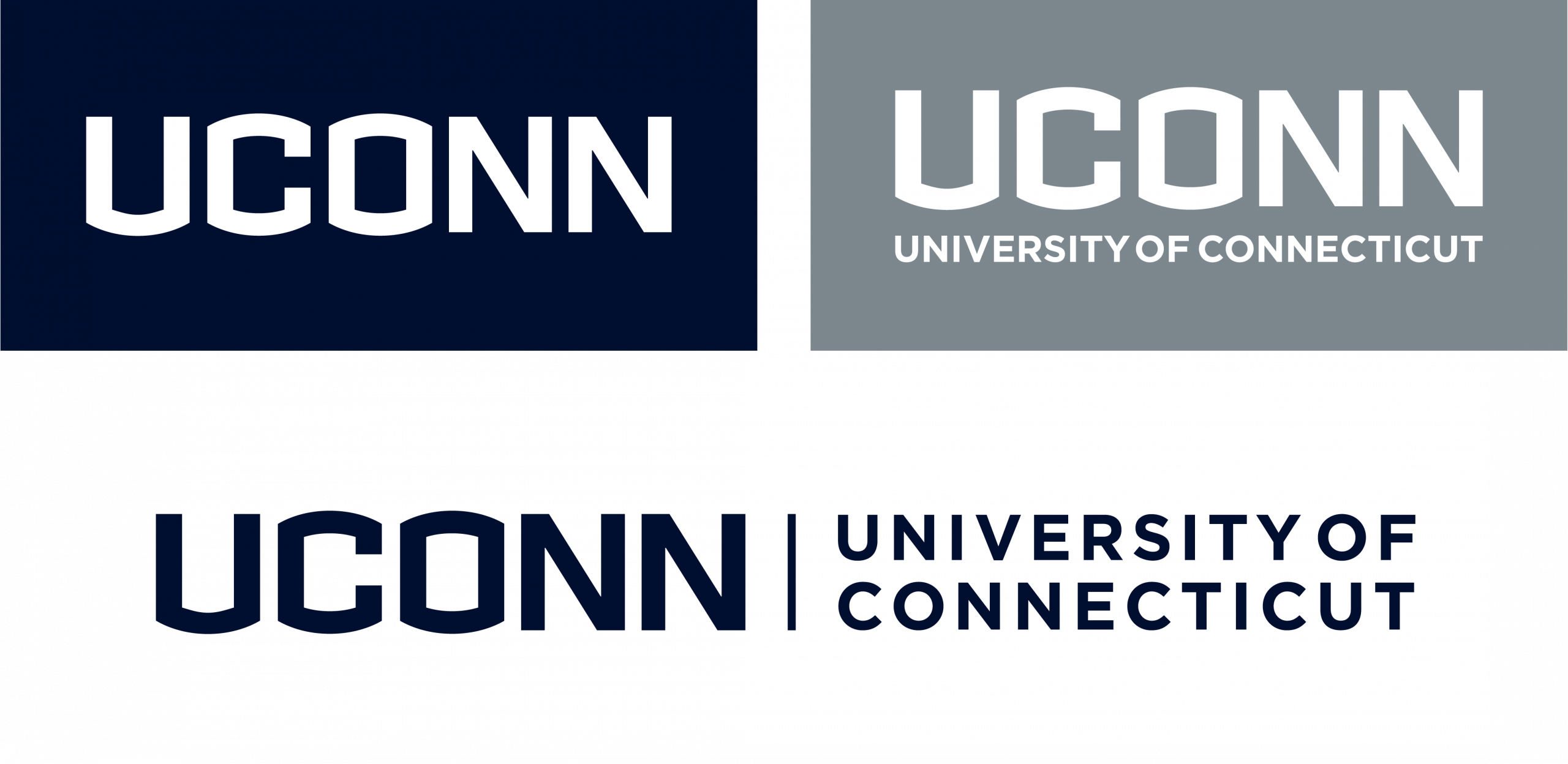
UConn Health leverages the UConn brand to extend its strong and powerful identity across the institution. While we created horizontal and vertical versions for flexibility, University Communications prefers you use the vertical wordmark; the horizontal arrangement is for limited use and requires the approval of Sheryl Rosen at srosen@uchc.edu or brand@uconn.edu.
Level Two Wordmark
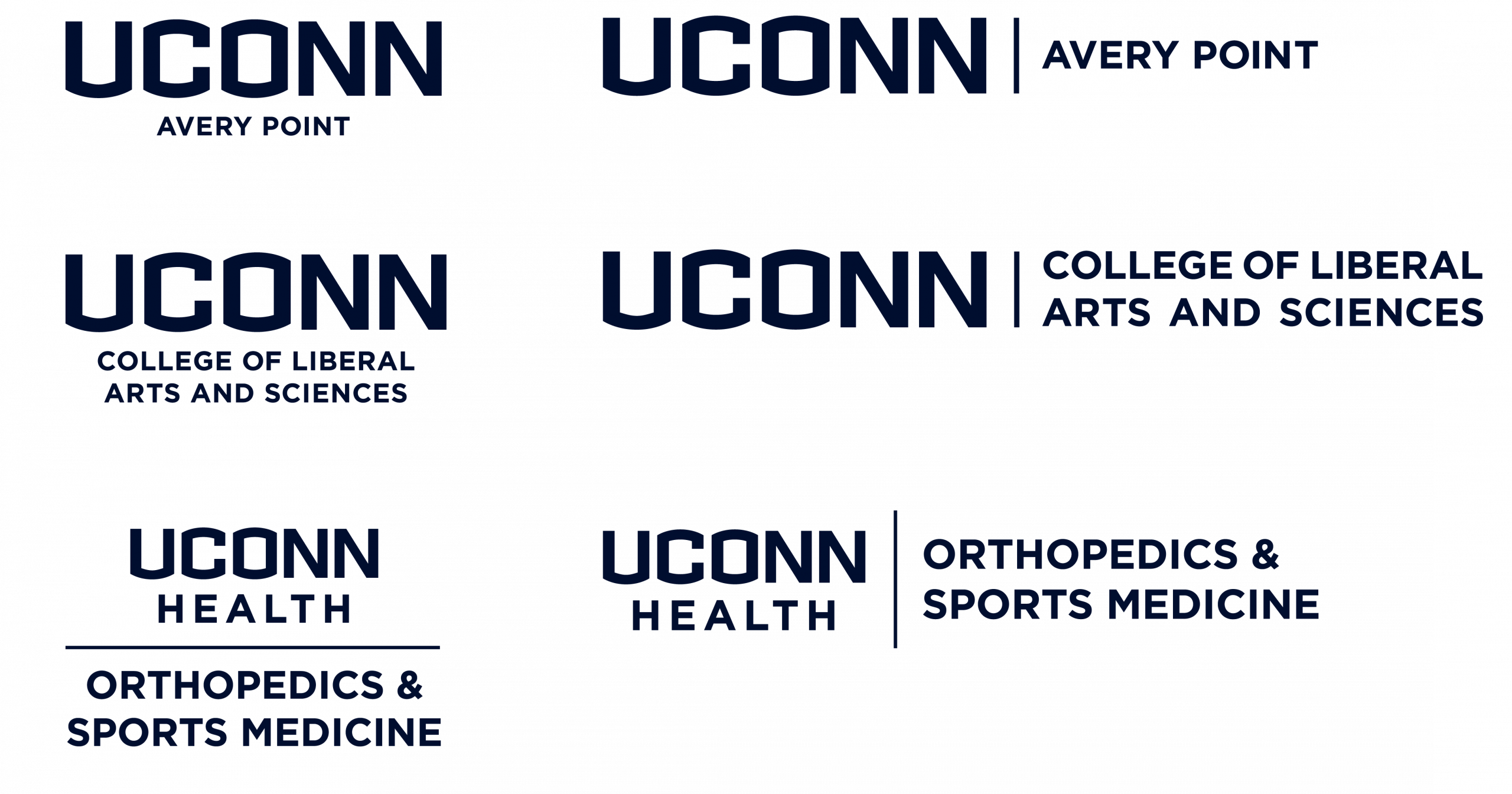
Level two wordmarks represent the University’s schools, colleges, regional campuses and UConn Health clinical. Created by University Communications, these wordmarks cannot be altered or replicated. However, they come in a variety of color options. The protected area and minimum size requirements for level two wordmarks are the same as those for the level one wordmark.
Level Three Wordmark
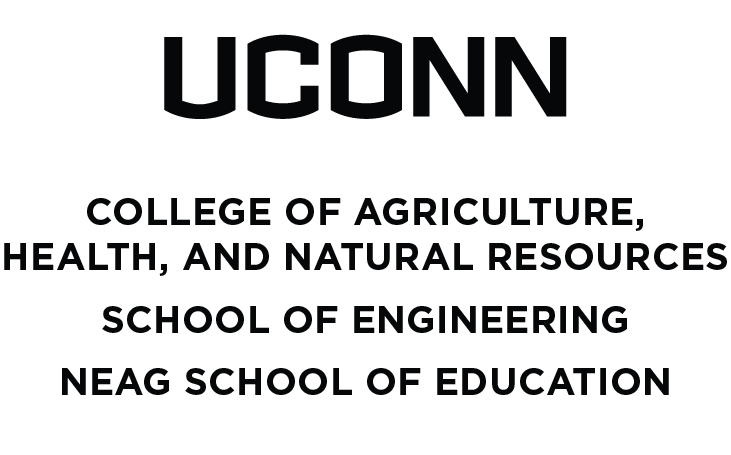
Level three wordmarks exist for entities that are not a school, college, regional campus, or UConn Health clinical. These marks allow for one or two levels of information hierarchy and are available in UConn blue, white, black, and UConn blue and grey. The protected area and minimum size requirements for level three wordmarks are the same as those for the level one and level two wordmarks.
Department or group names used in level three wordmarks should not extend beyond the width of the UConn lettering; rather, longer names should wrap to multiple lines.
Departments may choose between their official office name or a shortened version for their level three wordmark. There are multiple options available for each level three wordmark. University Communications can provide guidance on layouts that best suit individual needs.

Co-Branding
UConn is an active participant in our state, region, and beyond, often collaborating with other entities to drive broader goals. As such, there is a common need for partnerships and joint ventures (both internal and external) to visually communicate these collaborations in marketing materials.
Internal Co-Branding
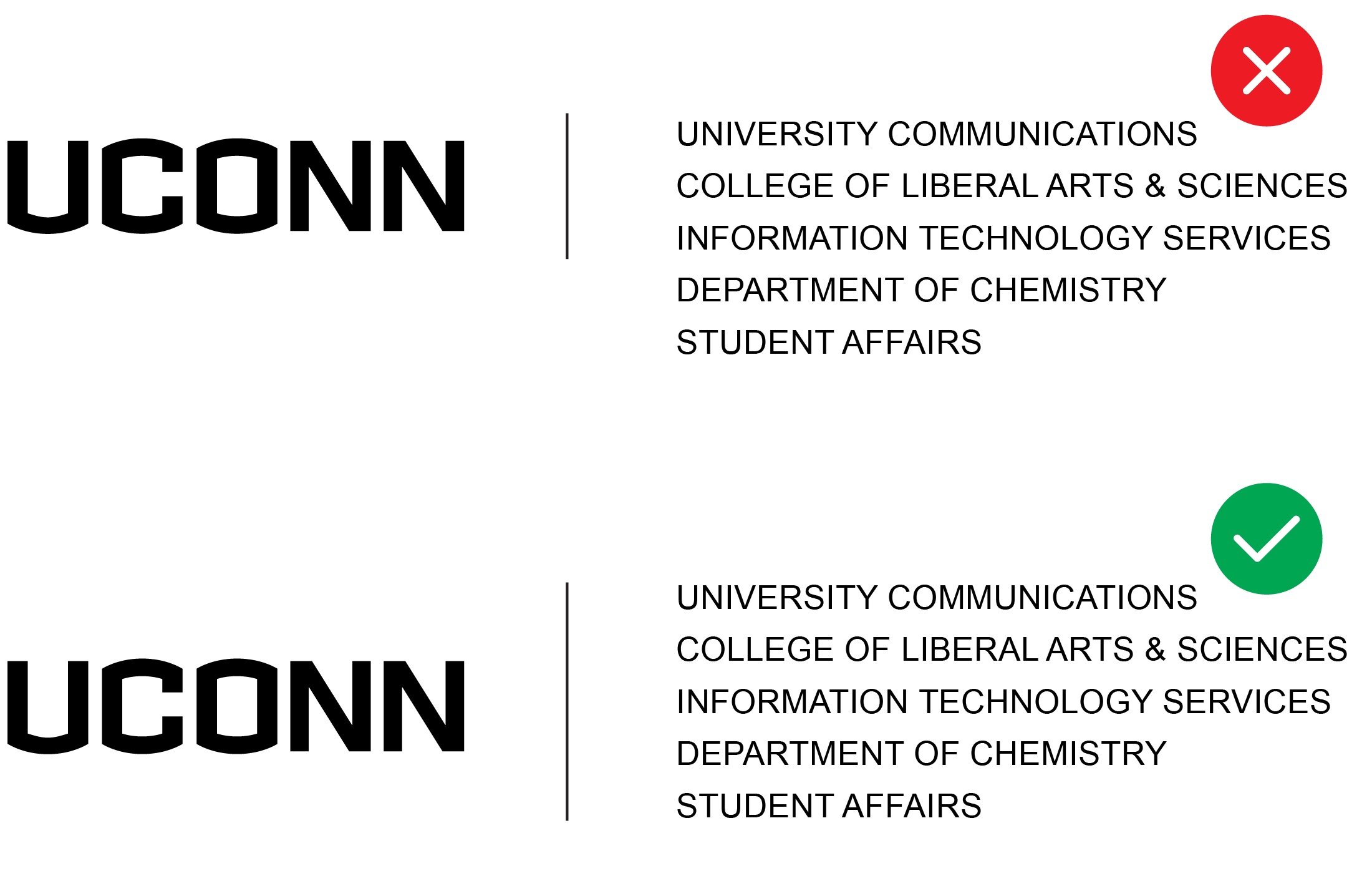
When more than one UConn entity (school/college, department, unit, etc.) is involved in a partnership or sponsorship, the use of multiple UConn logos is not permitted. Instead, to simplify the visual representation, the primary logo should be used alongside a listing of the involved groups.

Example of two school or colleges

Example of two units

Example of more than two school or colleges

Example of more than two units, including schools or colleges with units
Example of more than two school and colleges

Example of more than two units, including schools or colleges with units
How to Make Adjustments
When your co-branding needs exceed the examples mentioned above, please adjust the length of the separating line and center the UConn logo with the sponsoring offices. See example below.
External Co-Branding
When UConn partners with established organizations or institutions external to UConn, it is important to keep the integrity of UConn brand marks. Due to different variables and circumstances with partners and sponsorships, please reach out to Brand Partnerships and Trademark Management at licensing@uconn.edu to inquire about the creation of external co-branding.
Web-Specific Guidance
Any approved partnership logos should be displayed in a “Partnerships” section or panel that are in direct connection with an event, initiative, or program in which that partner is involved.
Third-party logos should never be included in the header of a website.
Any logos or image files used on University websites must be in a format that is accessible to assisted technology users.
Third-party logos should be equal in size to the UConn logo.
Other Considerations
When promoting a UConn event that has multiple sponsors, never create a mash-up of event logos, try to keep it organized. All sponsors should have adequate spacing around their branding. UConn branding should never appear in a mash up of logos, UConn branding will be on the marketing piece for the event, not with sponsors logos.
Before engaging in any promotional activity or co-branding opportunity that incorporates the UConn name, trademark, or other mark, units must contact the Office of University Communications at brand@uconn.edu for approval.
Third-party organizations are not permitted to use any UConn names, logos, slogans, mascots, indicia, colors, and other proprietary rights without express permission from the Office of Trademark Licensing. Please contact licensing@uconn.edu with any questions.
Example of more than two logos
If your event partners/sponsors exceeds ten logos, consider listing partners on your print pieces in text, and showcasing their logos on your web page for the event.
Extended Brands
Extended brands allow unique areas of the University to create an alternative brand mark. These extended brands should use their alternative mark in conjunction with the UConn wordmark to maintain the strength of the UConn brand. Unique areas of the University include retail establishments and University-wide initiatives such as Husky Harvest. Also included under the extended brand guidelines are anniversary badges to celebrate noteworthy anniversaries.
All extended brand logos require approval from University Communications prior to development and can be requested by emailing brand@uconn.edu.
Student organizations should refer to Student Organization Use of University Wordmarks and Logos guidelines for standards specific to their needs.